# Building a RedwoodJS Signup Form with Validation


I recently wrote a signup form and wanted to share how I did it. It shows how to use some of the more advanced features of React-Hook-Form with RedwoodJS. Redwood has its own `@redwoodjs/form` package. Under the hood it's using react-hook-form. For a lot of use cases using what's available through the RW package will be all you need. But if you need more control, you can import from the react-hook-form package directly and use everything available there.

This is what we'll build
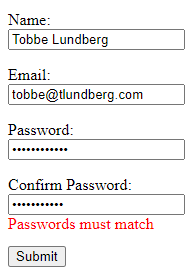
![Screenshot of signup form](https://tobbe.github.io/assets/rw_signup_form.png "Resulting form")

Let's start with a new Redwood project and generate a signup page to add our form to.

```terminal
yarn create redwood-app signup-example
cd signup-example/
yarn rw g page signup
```

Open up `SignupPage.js` in your code editor of choice and change it to look like this

```jsx
import {
  Form,
  TextField,
  EmailField,
  PasswordField,
  Label,
  Submit,
} from "@redwoodjs/forms";

const SignupPage = () => {
  const onSubmit = (data) => {
    console.log("Submitted form with data", data);
  };

  return (
    <Form onSubmit={onSubmit}>
      <Label name="name">Name:</Label>
      <TextField name="name" />

      <Label name="email">Email:</Label>
      <EmailField name="email" />

      <Label name="password">Password:</Label>
      <PasswordField name="password" />

      <Label name="password_confirm">Confirm Password:</Label>
      <PasswordField name="password_confirm" />

      <Submit>Submit</Submit>
    </Form>
  );
};

export default SignupPage;
```

And just to make it display a tiny bit better we'll add some CSS rules to `index.css`

```css
label,
button,
input {
  display: block;
}

label,
button {
  margin-top: 1em;
}

span {
  color: red;
}
```

Now you have a basic form you can use to let users signup on your website. Enter some data and press Submit and you'll see everything printed to the web browser console.

Next thing I wanted to do was to add some validation to the form. We want to make all fields required.

For this we can use the regular html5 `required` attribute, like so

```jsx
return (
  <Form onSubmit={onSubmit}>
    <Label name="name">Name:</Label>
    <TextField name="name" required />

    <Label name="email">Email:</Label>
    <EmailField name="email" required />

    <Label name="password">Password:</Label>
    <PasswordField name="password" required />

    <Label name="password_confirm">Confirm Password:</Label>
    <PasswordField name="password_confirm" required />

    <Submit>Submit</Submit>
  </Form>
);
```

Now, if you try to submit the form without filling in all the fields we'll see something like this
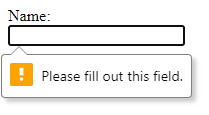
![Screenshot of html5 required field](https://tobbe.github.io/assets/rw_signup_required.png "required field tooltip")

But Redwood can do much better than that! Let's switch over to `@redwood/forms`' custom validation. One gotcha here is that you have to switch all fields over, you can't just add custom validation to one field, to try it out. If you do, the form will get confused. So you have to pick one way or the other for all your form fields.

Change your code to look like this to get "required" validation with custom messages.

```jsx
return (
  <Form onSubmit={onSubmit} noValidate validation={{ mode: "onBlur" }}>
    <Label name="name">Name:</Label>
    <TextField name="name" validation={{ required: "Name is required" }} />
    <FieldError name="name" />

    <Label name="email">Email:</Label>
    <EmailField name="email" validation={{ required: "Email is requried" }} />
    <FieldError name="email" />

    <Label name="password">Password:</Label>
    <PasswordField
      name="password"
      validation={{
        required: "You must choose a password",
      }}
    />
    <FieldError name="password" />

    <Label name="password_confirm">Confirm Password:</Label>
    <PasswordField
      name="password_confirm"
      validation={{ required: "You have to confirm your password" }}
    />
    <FieldError name="password_confirm" />

    <Submit>Submit</Submit>
  </Form>
);
```

As you can see we removed `required` and added `validation` instead. `required` is a regular html attribute, and `validation` is a prop from `@redwoodjs/forms`. As I mentioned earlier `@redwoodjs/forms` uses react-hook-form under the hood, and that `validation` syntax we used here would have looked something like this if done with r-h-f instead: `ref={register({ required: 'Name is required' })}`. This can be good to know when reading the r-h-f docs to try to figure out how to do something more advanced. We also added `noValidate` to the form, because we don't want the html5 validation now that we've added our own. Also configured to validation to trigger on blur.

The email is really important, so I wanted to add a bit more strict verification for that field. It's obviously not bullet-proof, but it's better than nothing.

```jsx
<EmailField
  name="email"
  validation={{
    required: 'Email is required',
    pattern: {
      value: /[^@]+@[^.]+\..{2,}/,
      message: 'Please enter a valid email address',
    },
  }}
/>
```

I decided to keep my password validation rules really simple. All I require is that the passwords are at least 10 characters long.

```jsx
<PasswordField
  name="password"
  validation={{
    required: "Password is required",
    minLength: {
      value: 10,
      message: "Password must be at least 10 characters long",
    },
  }}
/>
```

The final thing I wanted to add is probably the most interesting and that's validation to make sure "Password" and "Confirm Password" matches. For this we need to use the `watch` method from react-hook-form. It's available as part of what you get back from the `useForm()` hook.

These are the parts you need to set it up.

First a couple of new imports.

```jsx
import { useRef } from 'react'
import { useForm } from 'react-hook-form'
```

Here we use the imports from above. `useForm()` is from react-hook-form and gives us full control over the form. Normally `@redwoodjs/forms` set this up for us, but now we need our own, to set up a watch on the password. We store the watched value in a ref we get from React's `useRef()`. When you add a `watch` you're going to introduce more re-renders. But only when that watched field changes, not when any other field in the form changes.

```jsx
const formMethods = useForm()
const password = useRef()
password.current = formMethods.watch('password', '')
```

As I said, we're now using our own `formMethods`, so we have to let Redwood know to use that one, and not create one of its own.

```jsx
<Form
  onSubmit={onSubmit}
  noValidate
  validation={{ mode: 'onBlur' }}
  formMethods={formMethods}
>
```

Finally, for the validation, we add a custom `validate` method to the `validation` object. These custom `validate` methods receive the current field value as a parameter, and should return `true` when the field is valid, and `false` or a string when the field is not valid. The string, if that's what you return, will be the error message displayed for that field.

You can read more about `validate` and all other validation possibilities in the r-h-f docs: https://react-hook-form.com/api#register

```jsx
<PasswordField
  name="password_confirm"
  validation={{
    required: 'You must confirm your password',
    validate: (value) =>
      value === password.current || 'Passwords must match',
  }}
/>
```

There is one more thing I wanted to add. Since this is a signup page where the user should pick a new password I want the browser to show the password suggestion box.

![Screenshot of passwrod suggestion box](https://tobbe.github.io/assets/rw_signup_suggest_password.png "Browser suggested password")

The browser will try to figure out by context if it should show that box or not. And often it does the right thing. But there's no need for us to leave it to chance. If we tell the browser this is a `new-password` field it knows to show that ui. It's also helpful to tell the browser what field is the user name. We do this by setting `autoComplete="new-password"` and `autoComplete="username"` respectivly. Read more about these and many more options at [MDN](https://developer.mozilla.org/en-US/docs/Web/HTML/Attributes/autocomplete)

So this is the password field, notice the `autoComplete` attribute at the end
```jsx
<PasswordField
  name="password"
  validation={{
    required: 'Password is required',
    minLength: {
      value: 10,
      message: 'Password must be at least 10 characters long',
    },
  }}
  autoComplete="new-password"
/>
```

Wrapping it all up, here's the full `SignupPage.js`

```jsx
import { useRef } from 'react'
import { useForm } from 'react-hook-form'
import {
  Form,
  TextField,
  EmailField,
  PasswordField,
  Label,
  Submit,
  FieldError,
} from '@redwoodjs/forms'

const SignupPage = () => {
  const formMethods = useForm()
  const password = useRef()
  password.current = formMethods.watch('password', '')

  const onSubmit = (data) => {
    console.log('Submitted form with data', data)
  }

  return (
    <Form
      onSubmit={onSubmit}
      noValidate
      validation={{ mode: 'onBlur' }}
      formMethods={formMethods}
    >
      <Label name="name">Name:</Label>
      <TextField name="name" validation={{ required: 'Name is required' }} />
      <FieldError name="name" />

      <Label name="email">Email:</Label>
      <EmailField
        name="email"
        validation={{
          required: 'Email required',
          pattern: {
            value: /[^@]+@[^.]+\..{2,}/,
            message: 'Please enter a valid email address',
          },
        }}
        autoComplete="username"
      />
      <FieldError name="email" />

      <Label name="password">Password:</Label>
      <PasswordField
        name="password"
        validation={{
          required: 'Password is required',
          minLength: {
            value: 10,
            message: 'Password must be at least 10 characters long',
          },
        }}
        autoComplete="new-password"
      />
      <FieldError name="password" />

      <Label name="password_confirm">Confirm Password:</Label>
      <PasswordField
        name="password_confirm"
        validation={{
          required: 'You must confirm your password',
          validate: (value) =>
            value === password.current || 'Passwords must match',
        }}
        autoComplete="new-password"
      />
      <FieldError name="password_confirm" />

      <Submit>Submit</Submit>
    </Form>
  )
}

export default SignupPage
```


<span style="font-size: 80%">(Header photo by <a href="https://unsplash.com/@paulius005?utm_source=unsplash&amp;utm_medium=referral&amp;utm_content=creditCopyText">Paulius Dragunas</a> on <a href="https://unsplash.com/s/photos/password?utm_source=unsplash&amp;utm_medium=referral&amp;utm_content=creditCopyText">Unsplash</a>)</span>

